How to Sign Up on the Gate Exchange, Step by Step
GATE SIGN-UP GUIDE · AS OF OCT 2026
Signing up with the Gate exchange,
screen by screen
From the country setting to confirming your account is created.
Every time you fill in a field, there is a real screen to match.
The first time you sign up with an exchange, there is a moment that feels like a wall. Which country do I pick? Where does the verification code go? This post answers those questions one screen at a time.
We opened the Gate sign-up page and went through the country setting, email, verification code, password and the final confirmation ourselves, capturing each step. The names on the screens are written exactly as they appear, so keep the page open next to this guide and follow along.
Open the sign-up page
Open the Gate sign-up page with the link below.
The sign-up page starts with the title Welcome to Gate. In steps 2 and 3 we check the language and the country.
Check the language and region
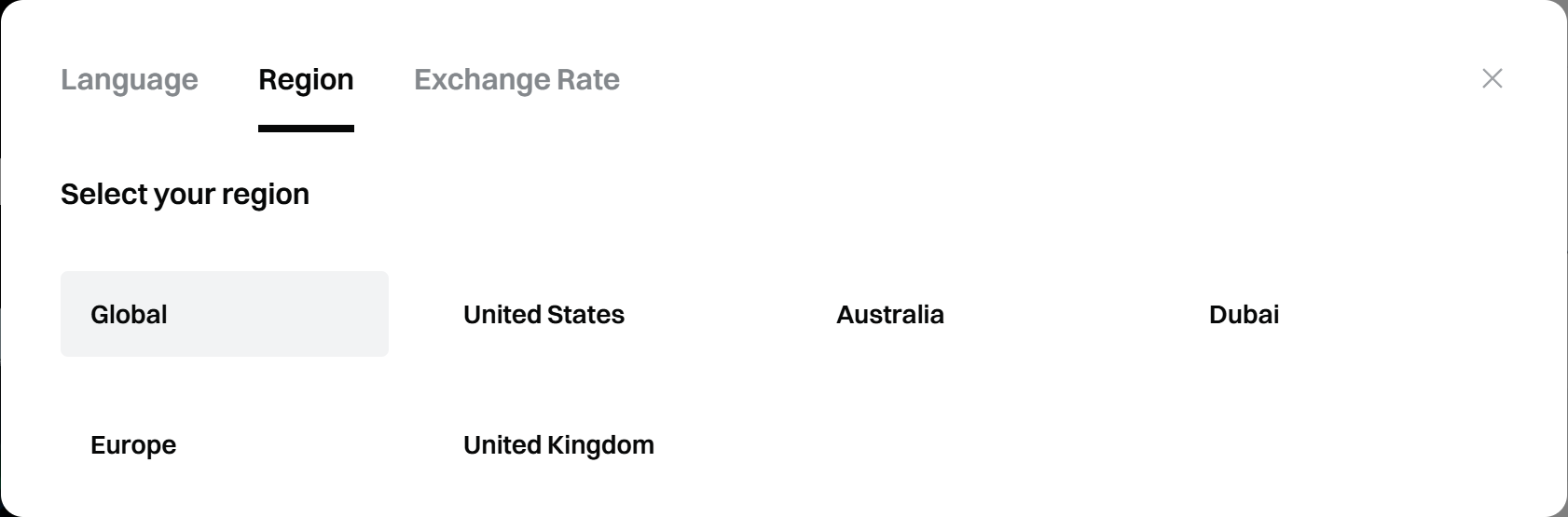
Use the globe icon at the top right to see Language and Region.
Press the globe icon at the top right of the screen and three tabs appear: Language, Region and Exchange Rate. The default language is English, and this guide follows the English screens.
The Region tab defaults to Global, and you can leave it as it is. The country you live in is chosen separately in the sign-up field in step 3.
Set your country: Country/Region of Residence
Pick the country where you actually live, and agree to the terms.
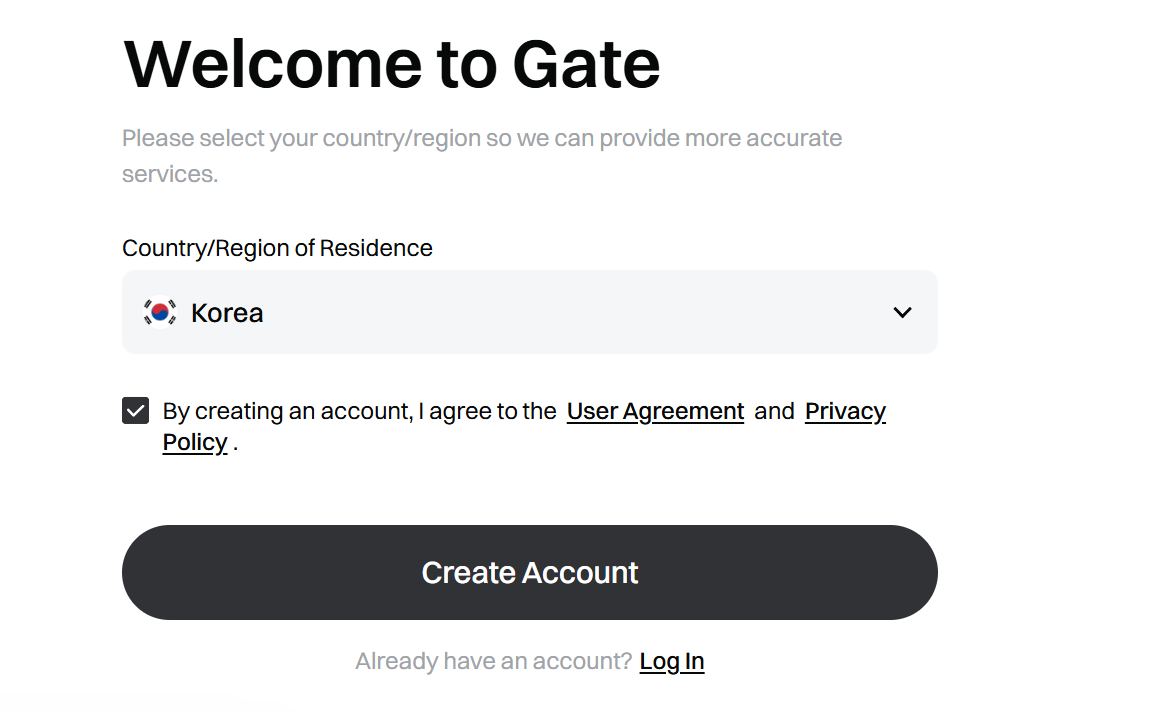
The first field on the sign-up page is Country/Region of Residence. When we opened it, Korea was already selected (this can differ depending on where you connect from). If it shows another country, press the field and change it to your own.
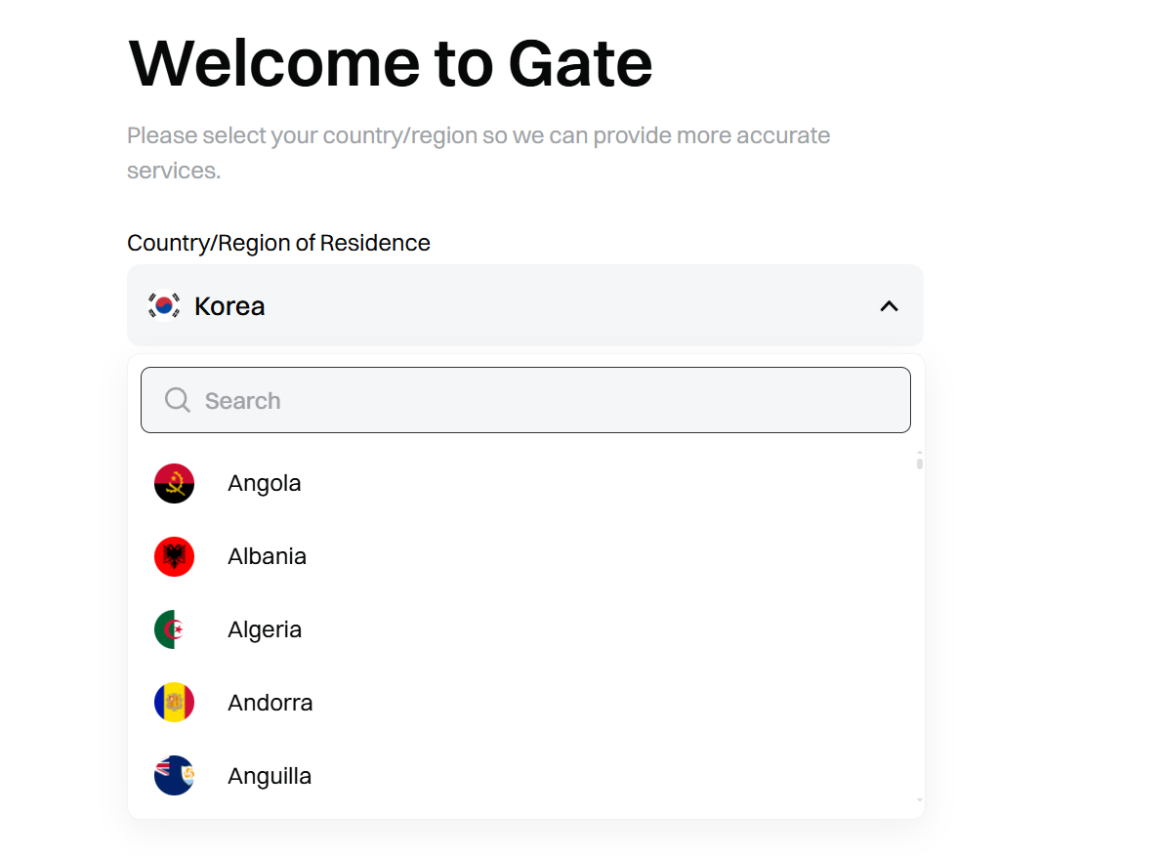
To change the country, press the country field to open the list. The list is long, so it is quicker to type your country in English into the Search field at the top. We typed Korea.
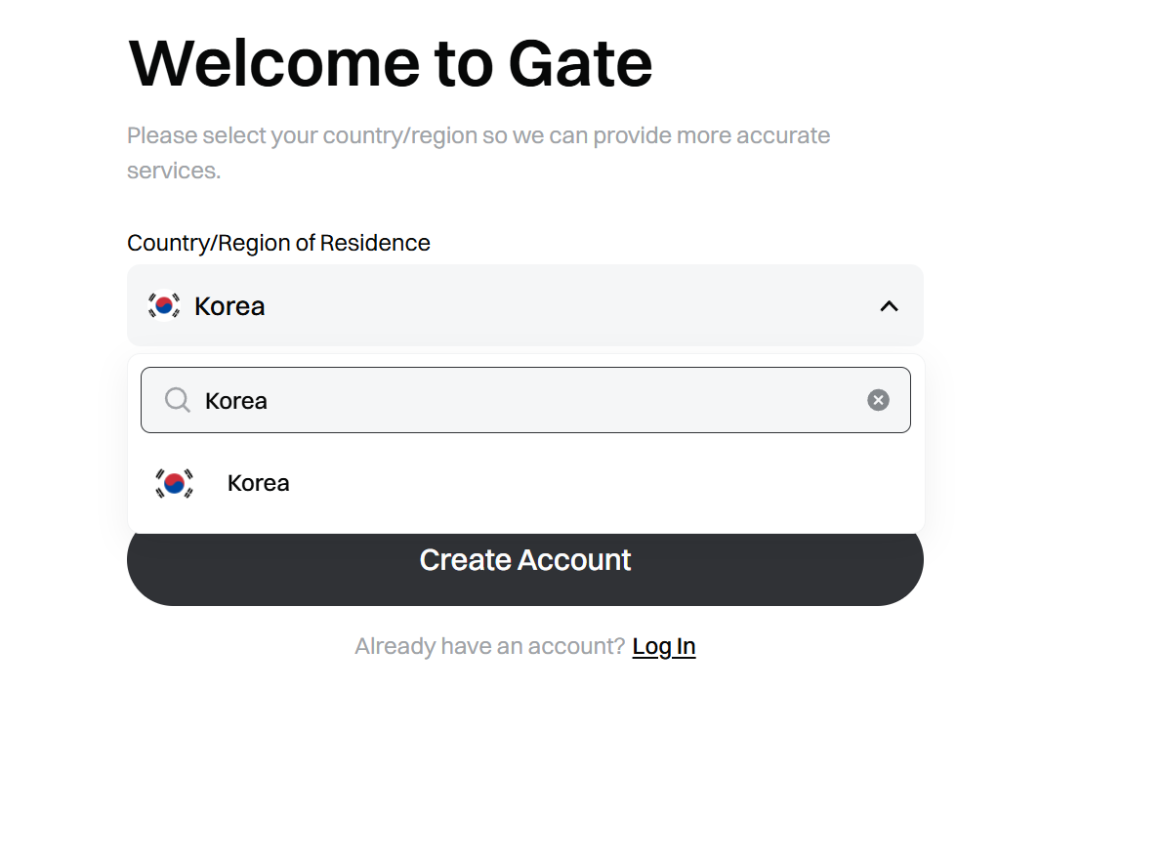
The checkbox below is your agreement to the User Agreement and the Privacy Policy. Make sure it is checked, open the two links and read them if you wish, then press the Create Account button.
Enter your email: the Create Account screen
Sign up with your email address.
Press Create Account and you move on to the Create Account screen. The Email tab at the top is selected by default, so just enter your email address. Below there are also buttons to continue with Google, Apple, Telegram or Metamask, but this guide explains the email sign-up.
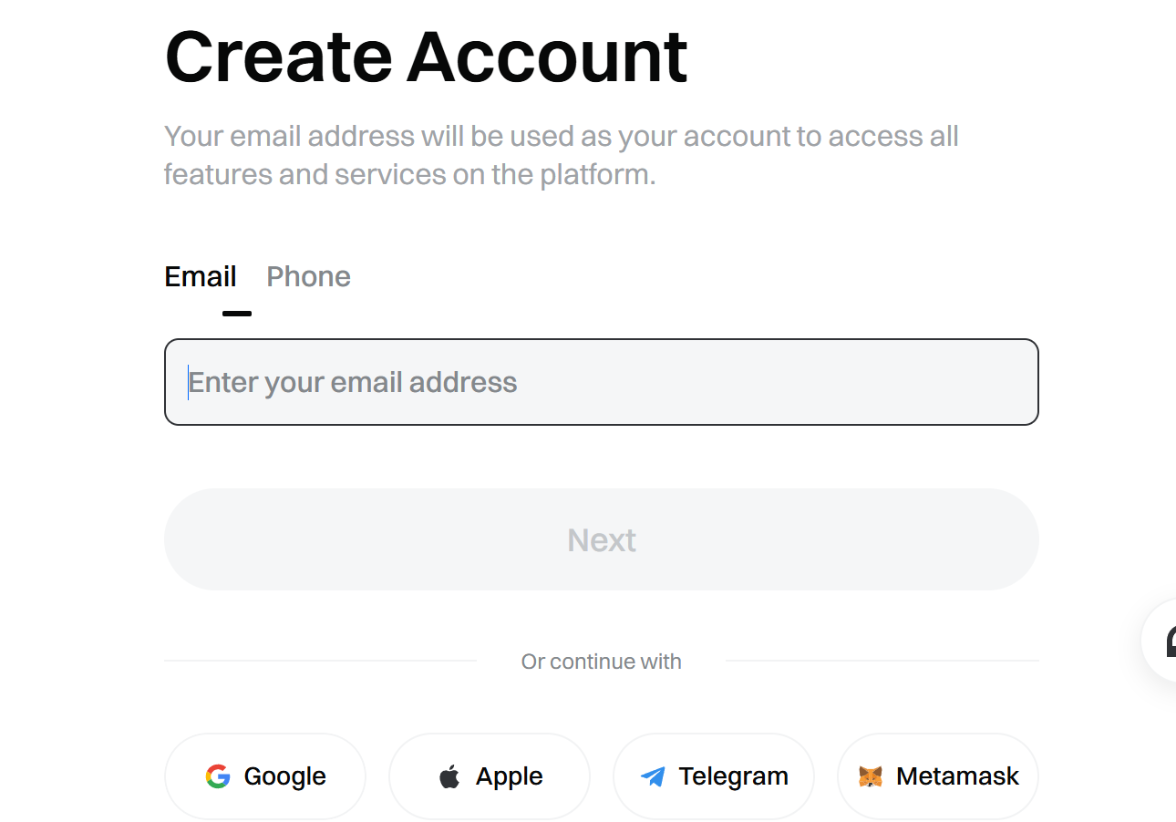
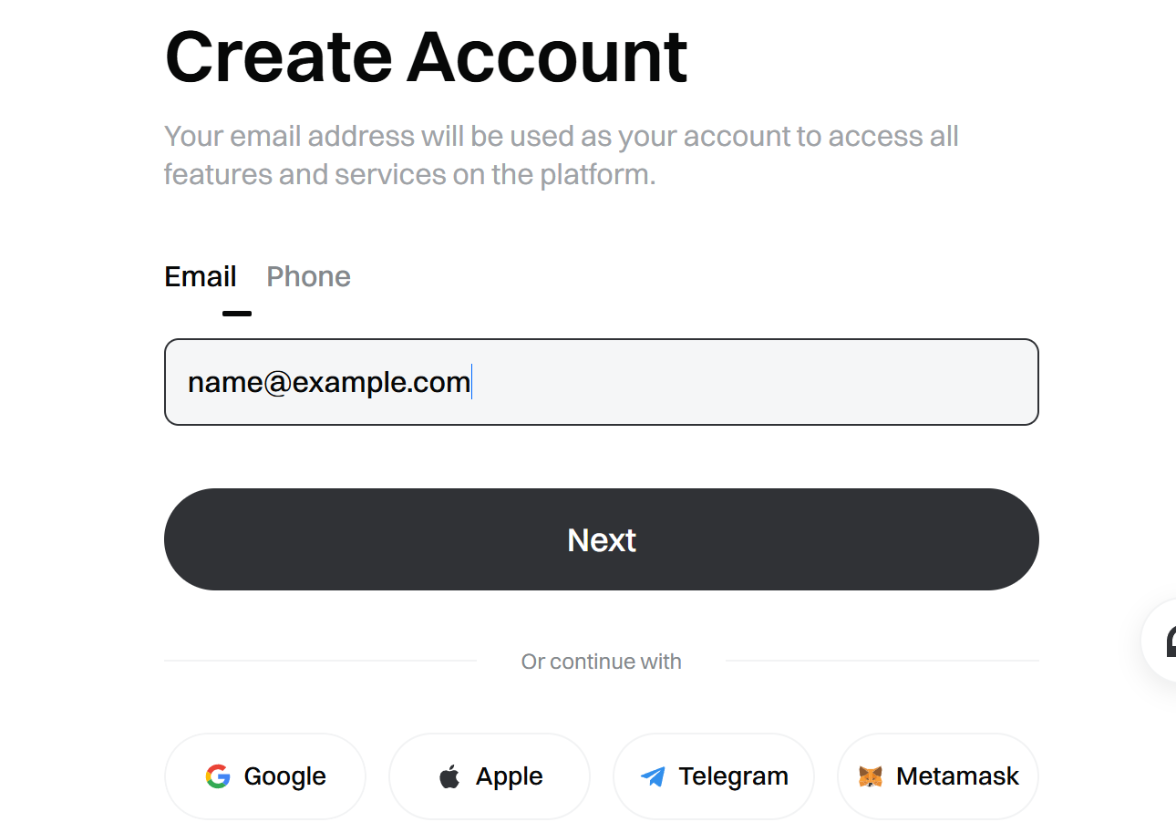
Type an email address you use often into the Enter your email address field. Once the address is complete, the greyed-out Next button turns dark. The screen below uses a made-up address (name@example.com) just to show the format. In practice, use an email address where you can receive the verification code yourself.
Enter the verification code: Verify Your Email
Enter the 6-digit code from the email within 10 minutes.
Press Next and the Verify Your Email screen opens, and a 6-digit verification code is sent to the email you entered. The code is valid for 10 minutes. Open the Gate email in your inbox, read the six digits and enter them in the boxes in order. Once all six are in, you move on to the next screen.
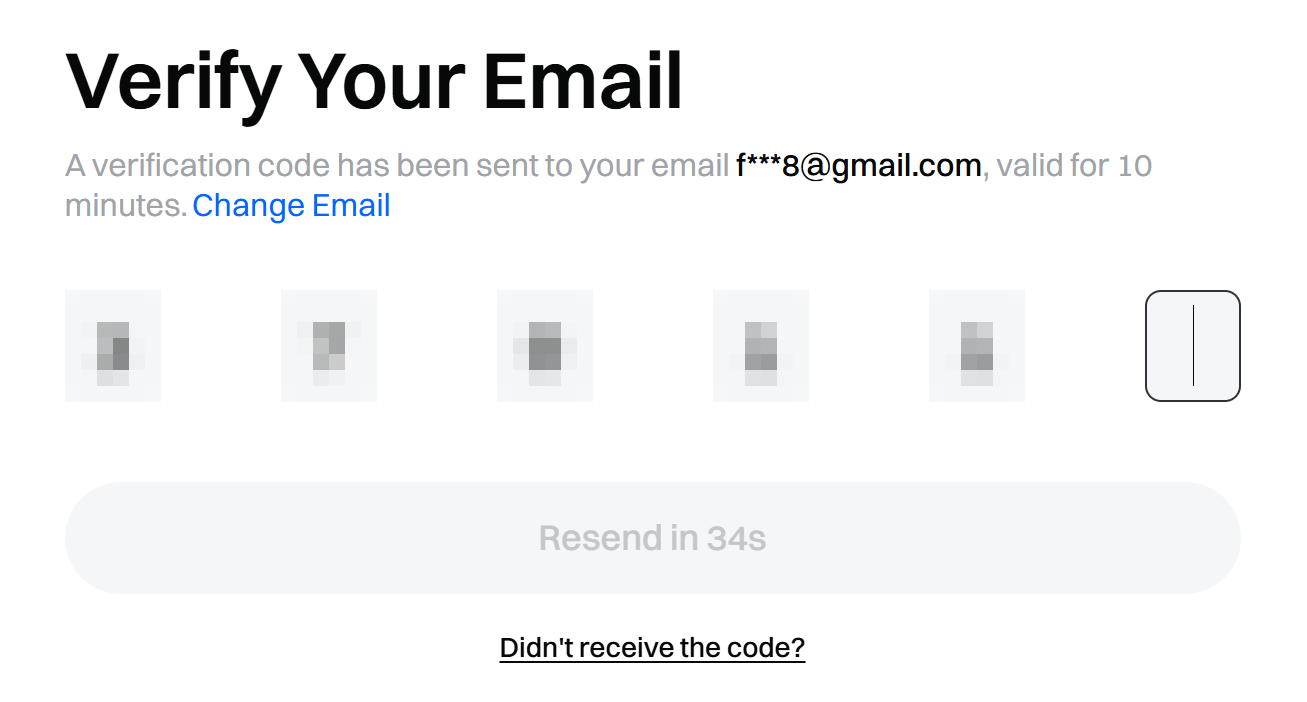
If the email doesn't arrive, check your spam folder first. If it isn't there either, press the Resend button at the bottom (it becomes active once the wait time ends) or Didn't receive the code?. If you typed the wrong email, Change Email next to the notice takes you back to fix it.
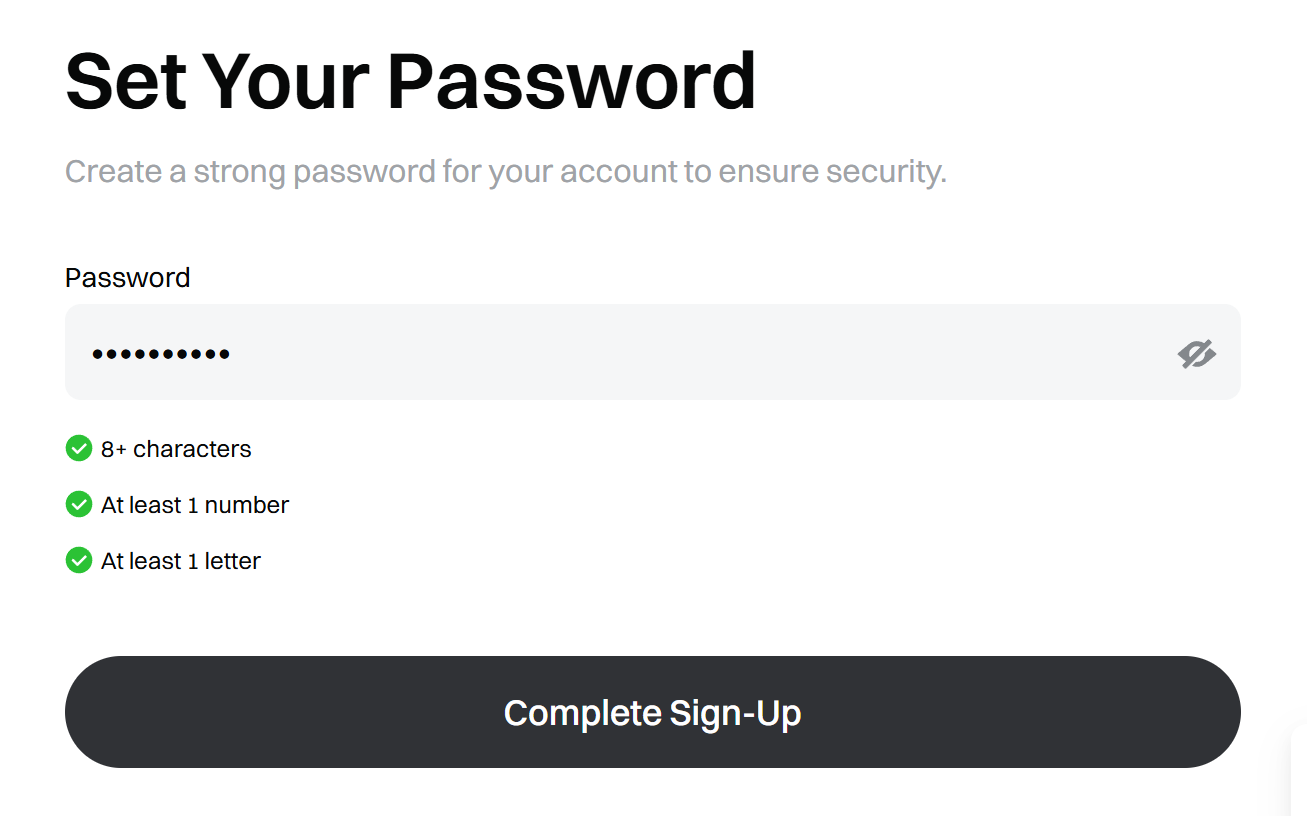
Set a password: Set Your Password
At least 8 characters, at least 1 number, at least 1 letter.
Once you are verified, the Set Your Password screen appears. As you type into the Password field, the three conditions below turn green one by one.
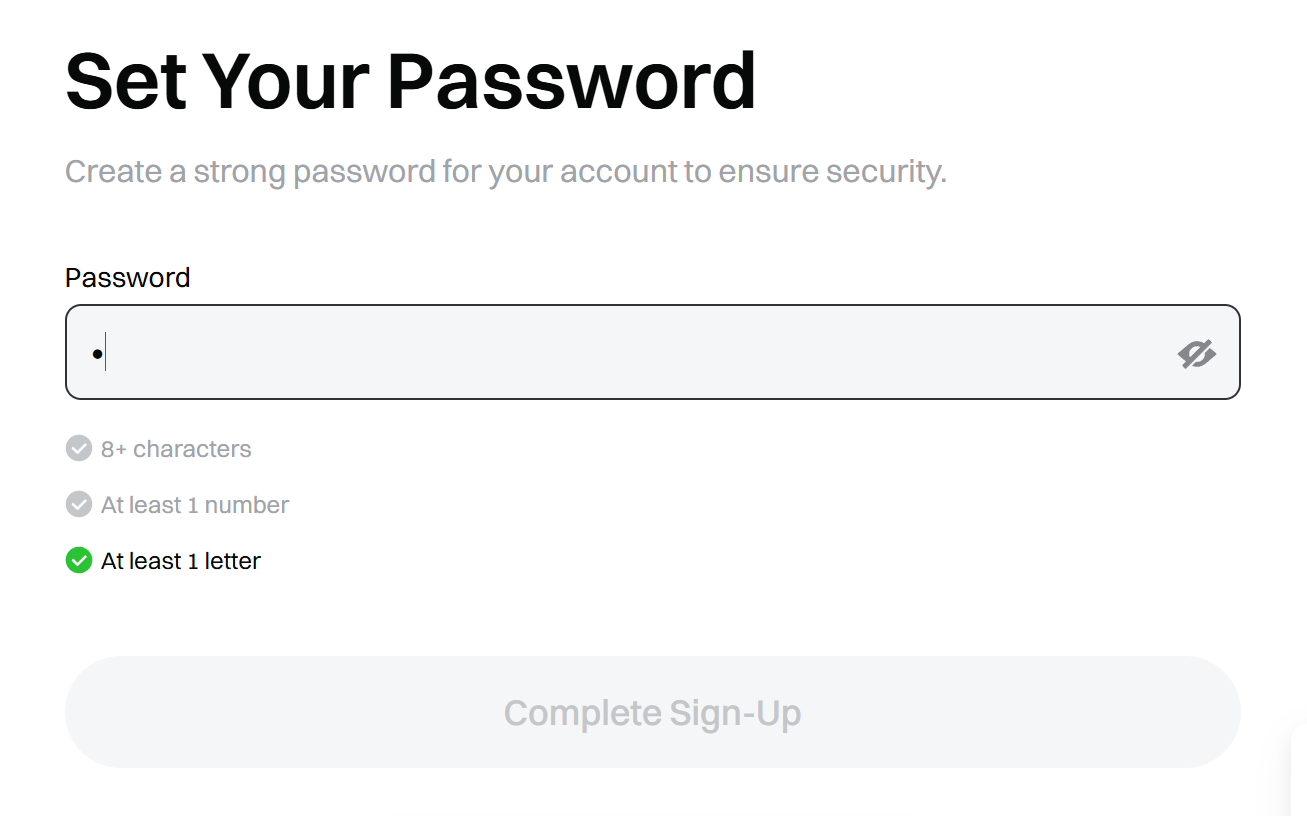
- 8+ characters: 8 or more characters
- At least 1 number: one or more numbers
- At least 1 letter: one or more letters
When all three conditions are green, the Complete Sign-Up button turns dark and becomes active. It is best to avoid a password you use on other sites.
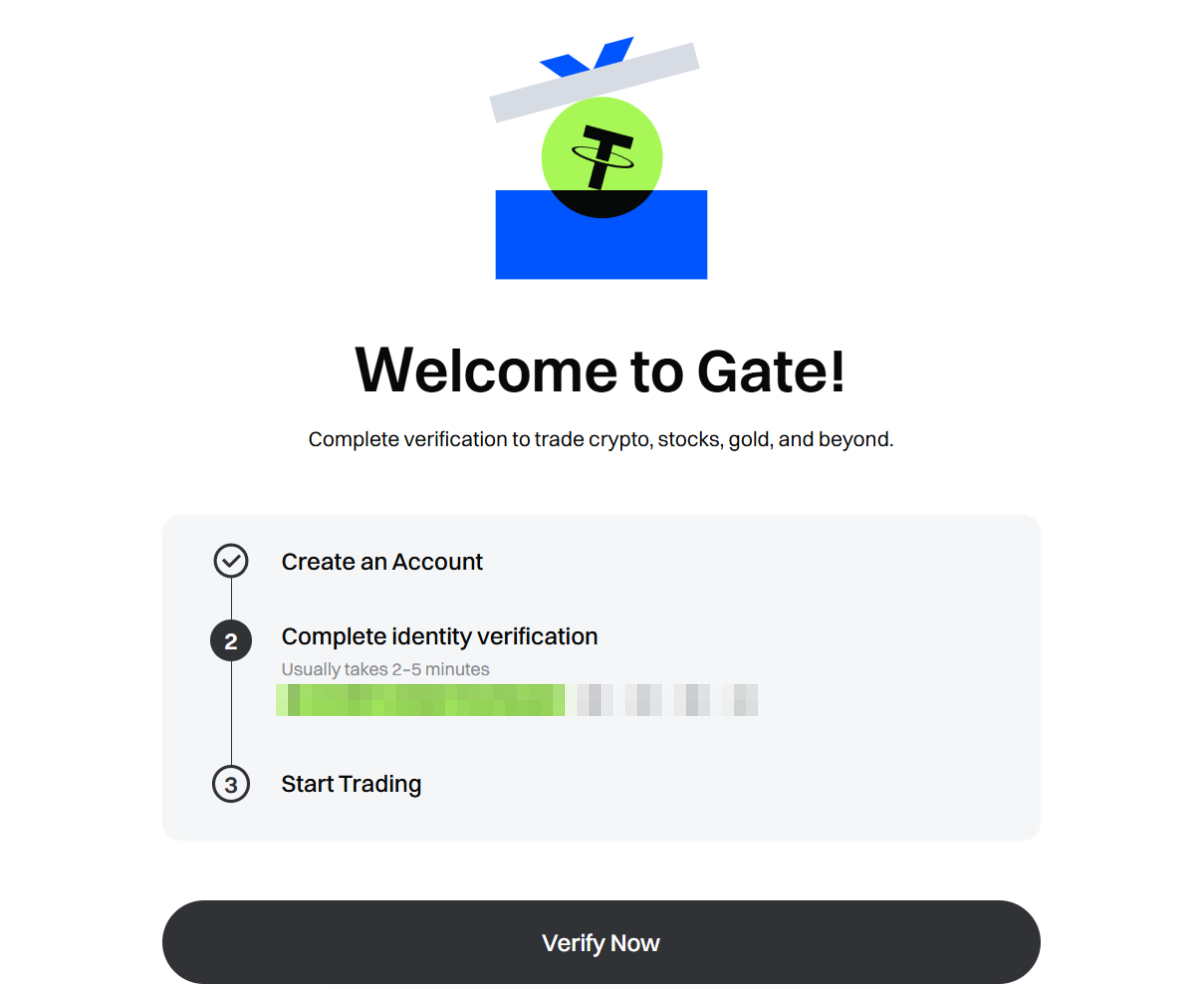
Confirm the sign-up: Welcome to Gate!
Confirm in two places: the check mark on the done screen, and your account page.
Press Complete Sign-Up and the Welcome to Gate! screen appears. If Create an Account in the list of steps in the middle has a check mark, sign-up is done. The next step is Complete identity verification, and after that comes Start Trading. You can continue with identity verification through the Verify Now button, and this guide covers only the sign-up.
To check once more, while logged in, open Overview under My Account. Look for whether a UID (account number) now appears at the top, whether Email (Username) shows the email you just signed up with, and whether Unverified is shown under your name. The notice line at the top means that you can use all features once you complete identity verification.

Policies and screens can change, so look over the latest guidance once more before you sign up.
Open the Welcome to Gate page through the sign-up link
Leave the language on English and the Region on Global
Pick your country in Country/Region of Residence and agree to the terms
Email, then the 6-digit verification code (valid 10 minutes), then a password that meets all 3 conditions
Confirm with the check mark on Welcome to Gate! and the UID under My Account

